
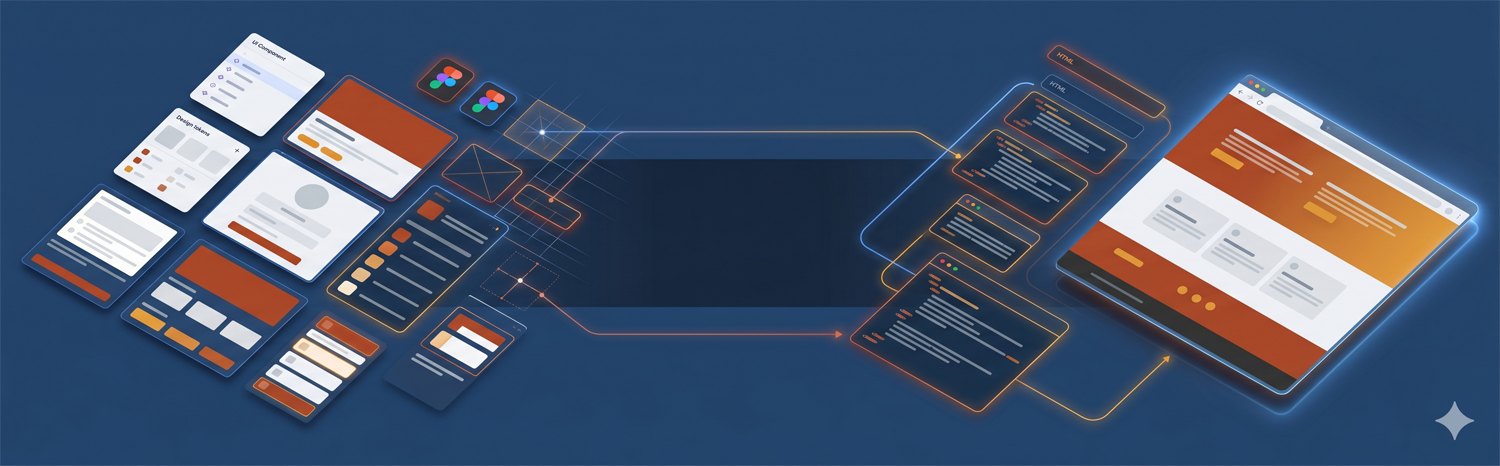
Type “Figma to WordPress” into Google and half the results are AI plugins promising a one-click conversion. I build these for a living, so I’ll save you the disappointment: those converters dump your design into Elementor as a pile of nested divs — it looks close in the demo and falls apart the moment you edit content or open it on a phone. A real Figma-to-WordPress build is a handoff process, not an export button. Here is how it actually works, and what you need to hand over to get a clean, fast site instead of a bloated one.
Over 80% of new custom WordPress projects I take on now start from Figma files. Dev Mode, Variables (design tokens), component properties, and interactive prototyping make Figma the most developer-friendly design tool ever built. The Figma-to-WordPress workflow is faster and more accurate than any previous handoff method.
Why Figma Has Become the Standard for WordPress Projects
Three years ago, half my projects came in as PSDs. Two years ago, a mix of Figma, XD, and PSD. Today, it’s almost entirely Figma. The shift happened for a reason: Figma solves the handoff problem that has plagued designer-developer collaboration since the beginning of web development.
Figma Dev Mode exports exact CSS values — spacing, colors, border-radius, typography — without interpretation. Figma Variables map directly to CSS custom properties (design tokens). Figma components map directly to reusable PHP template parts and Gutenberg blocks. The mental model alignment between Figma and modern WordPress development is closer than it’s ever been with any previous design tool.
Why “Instant Figma to WordPress” Plugins Produce Sites You Will Regret
The AI and plugin converters (Figma-to-Elementor tools and the like) all work the same way: they generate builder-specific, deeply nested markup tied to Elementor or Divi, with unused CSS and no real semantic structure or CMS fields. The demo looks perfect because it is the exact frame you exported. Real content of different lengths, real breakpoints, and a client who wants to edit a heading are what break it.
The performance cost is measurable, not theoretical. Page builders add 200–500KB of extra JavaScript and CSS to every page — the hand-coded builds we ship average 92 on Lighthouse, while typical converter or builder output lands in the 45–72 range, which Google reads as a slower, weaker page. If you want your Figma honored and a site you can maintain, it has to be hand-coded from the design, which is exactly what a proper Figma-to-WordPress build delivers. Use the one-click plugins for a throwaway prototype, never for the site you actually launch.
Setting Up Figma Files for Developer Handoff
Not all Figma files are created equal for development purposes. A Figma file that’s great for client presentations can be difficult to develop from if it lacks documentation, uses inconsistent components, or has no mobile frames. The setup that makes Figma-to-WordPress development fastest:
- Use Figma Variables for all tokens: Define color, typography, spacing, and radius as Variables — not hardcoded values. This means one change in Variables updates everywhere, and it maps directly to CSS custom properties in the theme.
- Build with a component library: Every repeatable UI element (cards, buttons, nav, footer) should be a Figma component with variants for states (default, hover, active, disabled, focus).
- Include all device frames: Desktop, tablet (768px), and mobile (375px) for every key page. Developers shouldn’t have to guess responsive behavior.
- Document interactions: Use Figma’s prototype connections or written annotations to describe hover states, transitions, dropdown behavior, and form validation states.
- Enable Dev Mode: Share files with Dev Mode access so developers can inspect spacing, typography, and color values without needing an editor seat.
The Figma Component Audit Process
Before writing a line of code, we audit every Figma component and map it to a WordPress output. This step typically takes half a day on a standard project and prevents the majority of revision rounds. The audit produces a spreadsheet with columns:
- Figma component name
- WordPress output type (template, template part, Gutenberg block, or CSS utility)
- Attributes needed (if Gutenberg block: what’s editable)
- Variants (responsive behavior, states)
- Edge cases (empty state, very long text, single item vs. multiple)
The edge cases column is where projects without a formal audit most often fall apart. A card component looks straightforward until you ask: what happens when the title is 60 characters? What if there’s no image? What’s the minimum number of items in the grid? Answering these before development means the code handles them — not discovers them during QA.
Mapping Figma Components to WordPress/Gutenberg
The mapping logic follows a simple hierarchy:
- Page-level layouts → WordPress page templates (PHP)
- Repeated structural elements (header, footer) → Template parts
- Editable content sections (hero, features grid, testimonials) → Custom Gutenberg blocks
- Non-editable decorative elements → CSS utilities or template part sub-components
The judgment call is: does this element need to be editable by a non-developer? If yes, it’s a Gutenberg block with attributes. If no, it’s a PHP template part or CSS. Over-building Gutenberg blocks for purely decorative elements adds development time without adding content team value.
Design Tokens: From Figma Variables to CSS Custom Properties
Figma Variables export as JSON, which can be transformed to CSS custom properties with tools like Style Dictionary or Token Transformer. The mapping is direct:
Figma Variable color/brand/primary → CSS --color-brand-primary: #3b5bdb
In practice for most projects, I export the token values once and build the CSS manually — the export tools add build complexity that isn’t worth it for single-project use. The value of Variables is consistency during design review, not the export itself.
Handling Edge Cases: States, Empty States, and Errors
The most common source of revision requests after a Figma-to-WordPress build are edge cases that weren’t designed for. The list to verify against every Figma design:
- Empty states (blog archive with no posts, search with no results, cart with no items)
- Long content (titles over 40 characters, descriptions over 200 characters)
- Single-item collections (one testimonial in a carousel, one product in a grid)
- Form validation states (error messages, success messages, loading states)
- Missing media (post without featured image, product without photo)
On projects where the designer has documented these states in Figma, development goes smoothly. On projects where they haven’t, we flag them during the component audit and either get designs for them or agree on fallback behavior in writing before development starts.
Review and Iteration: Managing Design Changes After Development Starts
Design changes during development are inevitable. The question is whether they’re absorbed gracefully or cause friction. Our process:
Changes to a component that hasn’t been built yet: free, absorbed into scope. Changes to a component that has been built but not approved: included in a revision window (typically one round). Changes to a component that has been reviewed and approved: scoped and quoted as a change order.
This is why the component audit and written scope agreement before development starts matters so much — it creates a shared understanding of what “approved” means, so change requests don’t feel adversarial.
Frequently Asked Questions
The component audit is where we start — not the code. Every Figma component gets mapped to either a WordPress template part or a Gutenberg block, and that mapping gets written down and agreed before a line of PHP is written. Design tokens from Figma Variables go directly to CSS custom properties. From there, it’s building the HTML/CSS from Dev Mode specs, wiring up Gutenberg blocks with block.json schemas, and QA-ing the live build side by side against the Figma frames on real devices. The biggest time savings come from a complete, annotated Figma file — approved designs with all states documented cut development time by 25–30% compared to designs that are still in flux when development starts.
Share with Dev Mode enabled, component descriptions filled in, all states documented (hover, focus, empty, mobile). Provide a Variables library for design tokens. Include written notes for any interactions or animations not obvious from static frames. Approved, annotated Figma files reduce development time by 25–30%.
Standard 6–10 page design: 3–5 weeks. Projects with 15+ unique templates or a large custom Gutenberg block library: 5–8 weeks. Biggest variable is design completeness — approved, annotated files with all states cut timeline by ~30% versus designs still in progress.
Experienced custom WordPress developers absolutely work from Figma. It’s the preferred format because Dev Mode exports exact CSS values, components map cleanly to PHP template parts, and Variables translate to CSS custom properties. Developers who say they can’t work from Figma are typically template customizers, not custom developers.
No — and over-building blocks is one of the most common ways to inflate a WordPress budget without adding value. The test for each component is simple: does a non-developer need to edit this? A hero, a features grid, a testimonials section — yes, those become Gutenberg blocks with editable attributes. A decorative divider, a fixed footer layout, a one-off icon row — no, those are PHP template parts or CSS utilities. Page-level layouts become page templates; repeated structures like header and footer become template parts. Turning purely decorative elements into blocks just adds development time the content team will never use.
Design changes mid-build are normal — the only question is whether they’re handled cleanly, and that comes down to what’s been agreed. Our rule: a change to a component that hasn’t been built yet is free and absorbed into scope. A change to a component that’s built but not yet approved goes into a revision window, usually one round. A change to a component that’s already been reviewed and signed off is scoped and quoted as a change order. None of this works without a component audit and a written scope up front — that’s what defines when something counts as “approved”, so change requests stay a normal part of the process instead of becoming a dispute.
There are tools for it — Style Dictionary, Token Transformer — and they’re genuinely useful at scale. But for a single project, I usually don’t. I export the Figma Variable values once and write the CSS custom properties by hand, because the export-tool build pipeline adds complexity that doesn’t pay off when you’re only doing it for one site. The real value of Figma Variables isn’t the automated export — it’s the consistency they enforce during design review, so a colour or spacing change updates everywhere instead of being missed in three places. The mapping itself is direct: a Figma Variable like color/brand/primary just becomes –color-brand-primary.
Empty states and long content, by a wide margin. A card component looks finished until you ask what happens when the title runs to 60 characters, when there’s no featured image, or when the grid has a single item instead of six. Blog archives with no posts, search with no results, carts with nothing in them — these almost never make it into the original Figma frames, and they’re exactly where an unaudited build breaks during QA. We list every edge case during the component audit — empty states, long titles and descriptions, single-item collections, form validation and loading states, missing media — and either get designs for them or agree the fallback behaviour in writing before any code is written. Handling them upfront means the code accounts for them instead of discovering them during QA.
Use named layers and components, apply auto layout, define your type and color styles, set clear breakpoints for desktop, tablet, and mobile, and note any interactions or dynamic content. A well-structured Figma file removes guesswork, speeds up the build, and produces a more accurate, maintainable WordPress site.
Yes. We build to match your Figma precisely across devices. Where the Figma file does not define a state – hover effects, intermediate breakpoints, or dynamic content – we design those to match the overall style and confirm them with you, so the live site faithfully reflects the design.
Yes. We structure the site so you can edit text, images, and content sections yourself through the block editor or a page builder, depending on how much control you want. You will not need a developer for routine content updates after launch.
Either, based on your priorities. A hand-coded custom theme gives the best performance and cleanest output; a page-builder layout gives you the most freedom to edit visually later. We will recommend the right approach for your editing needs, performance goals, and budget – or combine both.
For a throwaway prototype, sure. For a real site, no. One-click Figma-to-WordPress plugins and AI converters output builder-specific, deeply nested markup tied to Elementor or Divi, with unused code and no proper CMS fields. It looks fine in the demo frame you export, then breaks on real content, on mobile, and the first time someone edits it. That builder overhead (200-500KB per page) also drags down Core Web Vitals. A hand-coded conversion honors the design and produces clean, fast, editable code you own – which a converter cannot.
Related Services
Related WordPress design and development services.
Figma to WordPress Development
Turn Figma designs into clean, editable WordPress sites.
View serviceCustom WordPress Theme Development
Bespoke, fast WordPress themes built to your exact design.
View serviceCustom WordPress Development
Full-service custom WordPress builds, from strategy to launch.
View service