
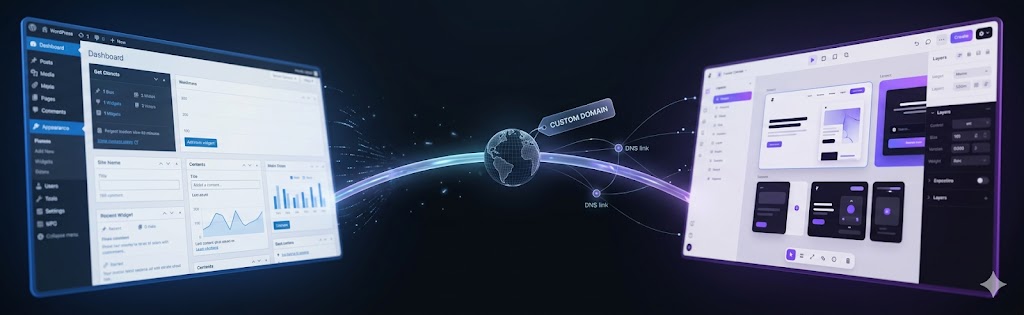
WordPress cannot be “connected” to Framer — they are separate platforms. However, you can point your domain’s DNS from a WordPress host to Framer’s servers, or use WordPress as a headless CMS backend with Framer handling the front-end display via a custom integration.
WordPress vs Framer: When You Might Use Both
WordPress and Framer serve different audiences and solve different problems. WordPress is a full-stack CMS — it handles content management, user management, e-commerce, and can serve the front end. Framer is primarily a design and prototyping tool that has evolved into a no-code site builder with impressive visual fidelity and animation capabilities.
The scenario where someone asks about connecting WordPress as a Framer custom domain usually falls into one of three situations: they’ve built their site in Framer and want to use a domain currently pointing to a WordPress installation; they want Framer for the front-end design while keeping WordPress for blog content and SEO; or they’re considering a full migration from WordPress to Framer and want to understand the domain transition process.
All three are legitimate and achievable, but each requires a different approach. Understanding exactly what “connecting WordPress as a Framer custom domain” means determines which path you need to take.
Can Framer Use a WordPress Custom Domain?
To be precise: Framer doesn’t “use a WordPress domain” — it uses a domain, period. If your domain currently points to a WordPress server, you redirect it to Framer by changing DNS records. WordPress is not involved in the domain itself; it’s just a web application running on a server that your domain happens to be pointing to right now.
Framer supports custom domains on any paid plan (Mini, Basic, or above). You add your domain in the Framer project settings under “Custom Domain”, then Framer gives you DNS records to configure: typically an A record pointing to Framer’s IP address, or a CNAME for a subdomain. You make those changes at your domain registrar or DNS provider (Cloudflare, Namecheap, GoDaddy, etc.).
Once DNS propagates (usually 1-48 hours), your domain serves your Framer site. Your WordPress installation is still there on your hosting server — it just isn’t receiving traffic from that domain anymore. You can keep it as a staging environment or decommission it.
How to Point Your Domain from WordPress to Framer
The process depends on where your domain is registered and where your WordPress site is hosted. Here’s the general sequence:
- Identify your DNS provider — this is your domain registrar (Namecheap, GoDaddy, Google Domains) or a DNS management service (Cloudflare). Log in to their dashboard.
- Get Framer’s DNS values — in Framer, go to your project’s Publish settings, click “Custom Domain”, enter your domain, and Framer will display the required DNS records.
- Update your DNS records — in your DNS provider, update or replace the A record for your root domain (@ or yourdomain.com) to point to Framer’s IP, and add a CNAME for www if needed.
- Wait for propagation — DNS changes can take up to 48 hours globally, though most propagate within a few hours.
- Verify in Framer — once propagated, Framer will automatically provision an SSL certificate and your site will go live on the custom domain.
Before making DNS changes, make sure your WordPress content is either backed up and accessible at a different URL, or that you’ve exported everything you need. Moving DNS is a one-way switch in terms of where your visitors land.
Using WordPress as a Backend with Framer Frontend (Headless)
A more sophisticated approach is to keep WordPress running as a headless CMS while using Framer (or another front-end framework) for the user-facing site. In this architecture, WordPress manages content through its REST API or WPGraphQL, and the front end fetches and renders that content.
Framer doesn’t natively support data fetching from WordPress’s REST API in the way that Next.js or Astro would. However, you can use Framer’s CMS integration to pull content from external sources if you build a connector, or use Framer’s API capabilities to fetch data on page load. For most teams, a proper headless WordPress setup is better served by a dedicated front-end framework like Next.js than by Framer, which is optimized for visual design rather than data-driven page rendering.
If you’re drawn to Framer for its design capabilities but need WordPress’s content management, the practical middle ground is to run Framer for marketing pages (home, features, pricing, about) while keeping WordPress for the blog and documentation — each on a different subdomain (framer.yourdomain.com for the app site, blog.yourdomain.com for WordPress).
Transferring a Domain from WordPress.com to Framer
If your domain is registered through WordPress.com (not just hosted there), the transfer process has an extra step. WordPress.com acts as a domain registrar for domains purchased through their platform, and you’ll need to transfer the domain to an independent registrar before you can freely manage DNS records for Framer.
To transfer: go to WordPress.com → My Sites → Upgrades → Domains → your domain → “Transfer Domain to Another Registrar”. WordPress.com will give you an authorization (EPP) code. Take that code to your chosen registrar (Namecheap is a common choice), initiate the transfer, and confirm the email WordPress.com sends. The transfer takes up to 7 days. Once complete, you own the domain at the new registrar and can point it to Framer’s DNS records.
SEO Implications of Moving from WordPress to Framer
Moving from WordPress to Framer has significant SEO implications that many designers overlook. WordPress has a mature SEO ecosystem — Yoast, Rank Math, XML sitemaps, structured data, and years of accumulated link equity. Framer is improving its SEO tooling but remains less capable than WordPress for content-heavy, SEO-driven sites.
The most critical concern is 301 redirects. If your URL structure changes during the migration (e.g., WordPress used /blog/post-title/ and Framer uses /blog/post-title), you’ll lose the link equity those URLs have accumulated unless you configure proper redirects. Framer’s redirect management is available in project settings but is more limited than WordPress’s options.
Before migrating, audit your highest-traffic pages using Google Search Console, document all URLs and their ranking positions, and build a redirect mapping document. Post-migration, monitor rankings closely for 30-60 days. If you rely on blog content for organic traffic, I’d strongly recommend keeping WordPress for the blog and using Framer only for pages where the visual design is the primary differentiator.
Pointing your domain from WordPress to Framer is straightforward DNS management. The real decision is about architecture: for design-focused landing pages, Framer is excellent; for content-heavy, SEO-driven sites, WordPress remains the stronger platform. Consider a hybrid subdomain approach before committing to a full migration.
Frequently Asked Questions
Both can rank well, but they suit different needs. WordPress gives you the deepest SEO control through plugins like Yoast or Rank Math, full schema, and unlimited content structure – ideal for blogs and large sites. Framer is fast and clean out of the box and is fine for marketing sites, but offers less granular SEO control. For content-heavy SEO, WordPress is usually the stronger long-term platform.
Adding the domain in Framer takes a few minutes; the DNS changes you make at your registrar then propagate, usually within a few hours and up to 24-48 hours in some cases. Until propagation completes, visitors may intermittently see the old destination, so plan the switch for a low-traffic window.
Only if you keep part of your site on WordPress. If you move everything to Framer, you no longer need separate WordPress hosting for the live site, though you may want to keep a backup export. Many brands run a hybrid setup – Framer for marketing pages, WordPress for the blog – in which case you keep both.
Yes, but it is a rebuild rather than a switch. Framer content does not export into a WordPress theme automatically, so you would recreate the pages in WordPress and re-point the domain. To avoid lock-in surprises, keep your content and assets in a portable format and map your URLs so redirects are easy if you ever migrate.
Related Resources
Building or moving a WordPress site? These related services and guides can help.
Custom WordPress Development
Headless WordPress solutions and custom front-end integrations.
View serviceCustom WordPress Theme Development
Bespoke themes with the design freedom of Framer, the power of WordPress.
View service